# Buyer UI: Embedded Checkout Implementation Guide
# Meet the Checkout UI Web-Embeds
UNIPaaS offers a robust suite of white-labeled Checkout UI Web-Embeds that are ready for immediate integration into your platform. These components are designed to streamline your development process, accelerate your launch, and enhance your customers' payment flow.
### Explore our Embedded Checkout Components
[Open in Figma](https://www.figma.com/embed?embed_host=share&url=https%3A%2F%2Fwww.figma.com%2Fproto%2FEl6YwA7IGoGj4PCpmTy7iI%2FCheckout-Docs%3Fpage-id%3D0%253A1%26node-id%3D544-22407%26viewport%3D840%252C-10546%252C0.34%26t%3DRBgwEnt7EfAMLDOB-1%26scaling%3Dmin-zoom%26content-scaling%3Dfixed%26starting-point-node-id%3D544%253A22407%26hide-ui%3D1)
***
### Benefits
UNIPaaS UI Web-Embeds provide significant advantages for platforms aiming to integrate payment functionalities:
* **Simplified development**: With pre-built, white-labeled components, your development team can rapidly deploy a comprehensive payment solution, saving valuable time and resources.
* **Streamlined user experience**: Implementing UNIPaaS Web-Embeds directly into your platform’s UI creates a seamless payment process for users, eliminating the need to navigate away to external payment portals.
* **Save Card for Future Payments**: Securely store card details, enabling users to quickly pay in the future without re-entering their information, enhancing convenience and speed.
* **White-labeled UI**: The highly customizable nature of these Web-Embeds allows you to tailor their appearance to match your platform’s branding and design, providing a consistent and professional user interface.
* **Security and compliance**: Built with security and compliance in mind, these Web-Embeds adhere to industry standards for transaction security and fraud prevention, giving your users peace of mind during payments.
***
# Implementation Steps
1. [Authorization](https://docs.unipaas.com/docs/checkout-implementation-guide#1-authorization)
2. [Installation](https://docs.unipaas.com/docs/checkout-implementation-guide#2-installation)
3. [Implementation](https://docs.unipaas.com/docs/checkout-implementation-guide#3-implementation-of-the-embedded-checkout)
1. [Checkout Page UI Web-Embed](https://docs.unipaas.com/docs/checkout-implementation-guide#checkout-page-ui-web-embed)
2. [Digital Wallet (Apple Pay / Google Pay) UI Web-Embed](https://docs.unipaas.com/docs/checkout-implementation-guide#digital-wallet-apple-pay--google-pay-ui-web-embed)
3. [Card UI Web-Embed](https://docs.unipaas.com/docs/checkout-implementation-guide#card-ui-web-embed)
4. [Payment Method Selection UI Web-Embed](https://docs.unipaas.com/docs/checkout-implementation-guide#payment-method-selection-ui-web-embed)
4. [DOM EventListeners](https://docs.unipaas.com/docs/checkout-implementation-guide#4-dom-eventlisteners)
 ***
# 1. Authorization
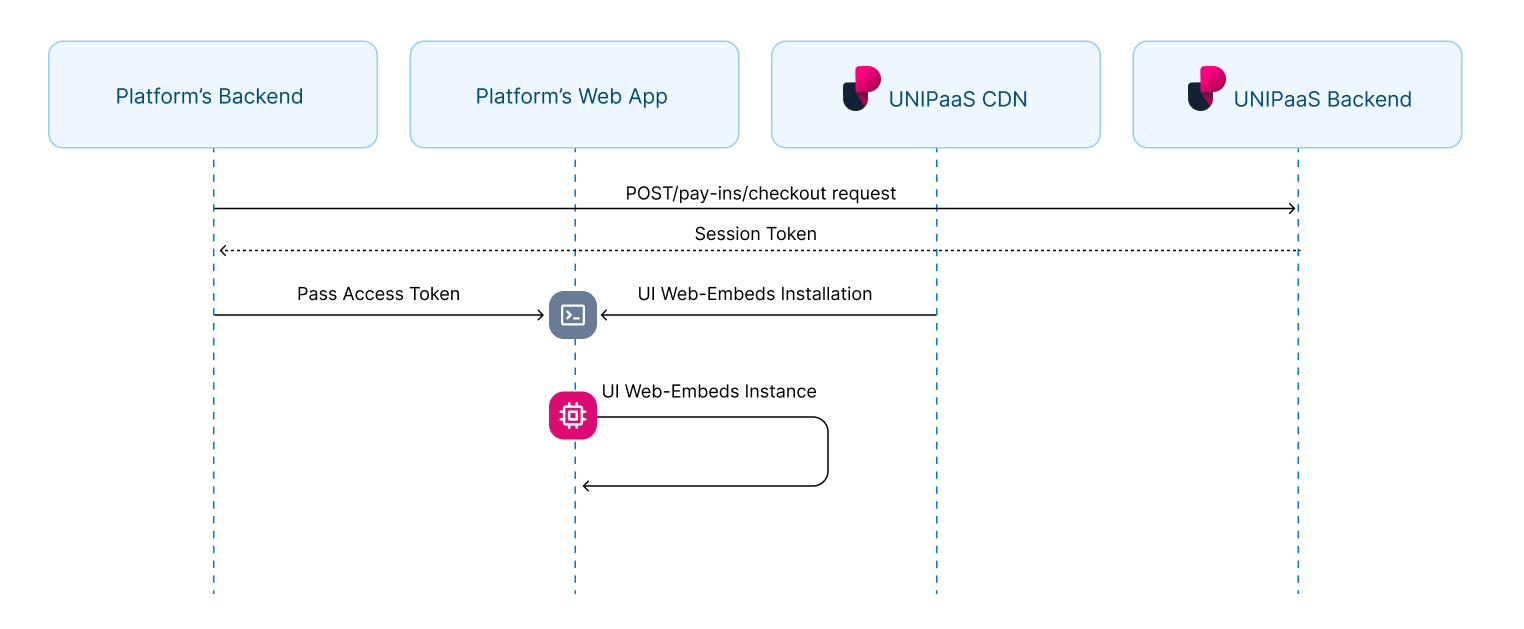
In order to load the checkout UI Web-Embeds in your platform, an authorized API call is needed in your backend.
## Generate an access token
To obtain an access token, you need first create a checkout using [POST/pay-ins/checkout](https://docs.unipaas.com/reference/websdkpayincontroller_createcheckout) endpoint.
[Learn more about payment creation](https://docs.unipaas.com/docs/create-payment)
Below is an example of the JSON payload for creating a payment:
```json
{
"amount": 100,
"currency": "GBP",
"country": "GB",
"vendorId": "66532df5d55926b2b12a874a",
"email": "consumer_name@example.com",
"reference": "Payment123",
"description": "Payment for service",
"consumer": {
"name": "consumer.name",
"reference": "CON-REF-123"
}
}
```
In response to this API call, you will receive a session token along with other parameters:
```json
"sessionToken": "eyJhbGciOiJIUzI1NiIsInR5cCI6IkpXVCJ9.eyJtZXJjaGFudElkIjoiNjEwNjZkYjA2MzBmNGUzNTlkYzA4NGU5IiwibWVyY2hhbnROYW1lIjoiQWxpY2UiLCJhbW91bnQiOjEwMCwiY3VycmVuY3kiOiJHQlAiLCJlbWFpbCI6InVzZXJAZXhhbXBsZS5jb20iLCJjb3VudHJ5IjoiR0IiLCJzZWxsZXJJZCI6IjY2NWVkMjEyZmNkZjBjZmVjM2M4N2UwMiIsInZlbmRvcklkIjoiNjY1ZWQyMTJmY2RmMGNmZWMzYzg3ZTAyIiwic2NvcGVzIjpbIndlYnNka19hY2Nlc3MiLCJkaXJlY3RfZGViaXRfcmVhZCJdLCJpc1JlY3VycmluZyI6ZmFsc2UsInBheW1lbnRMaW5rSWQiOiJMa1FUMTJnTC1VIiwiaWF0IjoxNzE4NjA0ODk3LCJleHAiOjE3MTg2MDY2OTd9.tfW5IUKOdes4Lb0g5laFCyFZzySzfwe0gHo6Ohi2pqI"
```
This session token is necessary for loading the Checkout Page UI Web-Embed.
# 2. Installation
**Script tag**
Start with placing the following script tag element inside of the ``of your HTML page:
```html
```
This script tag loads the JavaScript code that provides the functionality for implementing UNIPaaS UI Web-Embeds on a webpage. When the script is loaded and executed, it will create an object in the memory that contains methods for instantiating and interacting with the UI Web-Embeds.
**General configuration**
Place the following script tag element below the closing `` tag of your HTML page.
This script is used to initialize and configure UNIPaaS UI Web-Embeds on a web page.
```html
```
### Theme
The theme configuration allows you to customize the visual design of UNIPaaS UI Web-Embeds to match your product's branding. The theme comes with a set of pre-defined variables that are automatically applied based on the selected theme type, such as "dark" or "default". However, if you need to modify specific aspects of the theme, you can easily adjust these variables to suit your requirements. The variables can be used to override the aspects of the theme.
Below is a table that explains each variable available for customization:
| Name | Type | Description |
| ------------------------- | ------ | -------------------------------------------------------------------------------------------------------------------- |
| `theme.type` | string | Specifies the theme type, such as "light" or "dark". |
| `BackgroundColor` | string | Defines the primary background color for the UI Web-Embeds. |
| `primaryTextColor` | string | Determines the color for primary text elements, including the checkout amount, vendor name, and payment method name. |
| `secondaryTextColor` | string | Specifies the color for secondary text elements, including the reference number and save card for future payments. |
| `primaryColor` | string | Defines the color of the Pay button and other significant elements |
| `primaryInputTextColor` | string | Defines the text color of the input values (i.e. card number) |
| `digitalWalletButtonMode` | string | Determines the display mode for digital wallet buttons, such as "white" or "black". |
# 3. Implementation of the Embedded Checkout
> 📘 **Note!**
>
> Please note that when mounting a component using a selector, the component should not be mounted more than once per selector. Mounting a component more than once can lead to unexpected behavior and issues.
>
> To avoid this, make sure to check whether the component has already been mounted before calling the mount method.
## Checkout Page UI Web-Embed
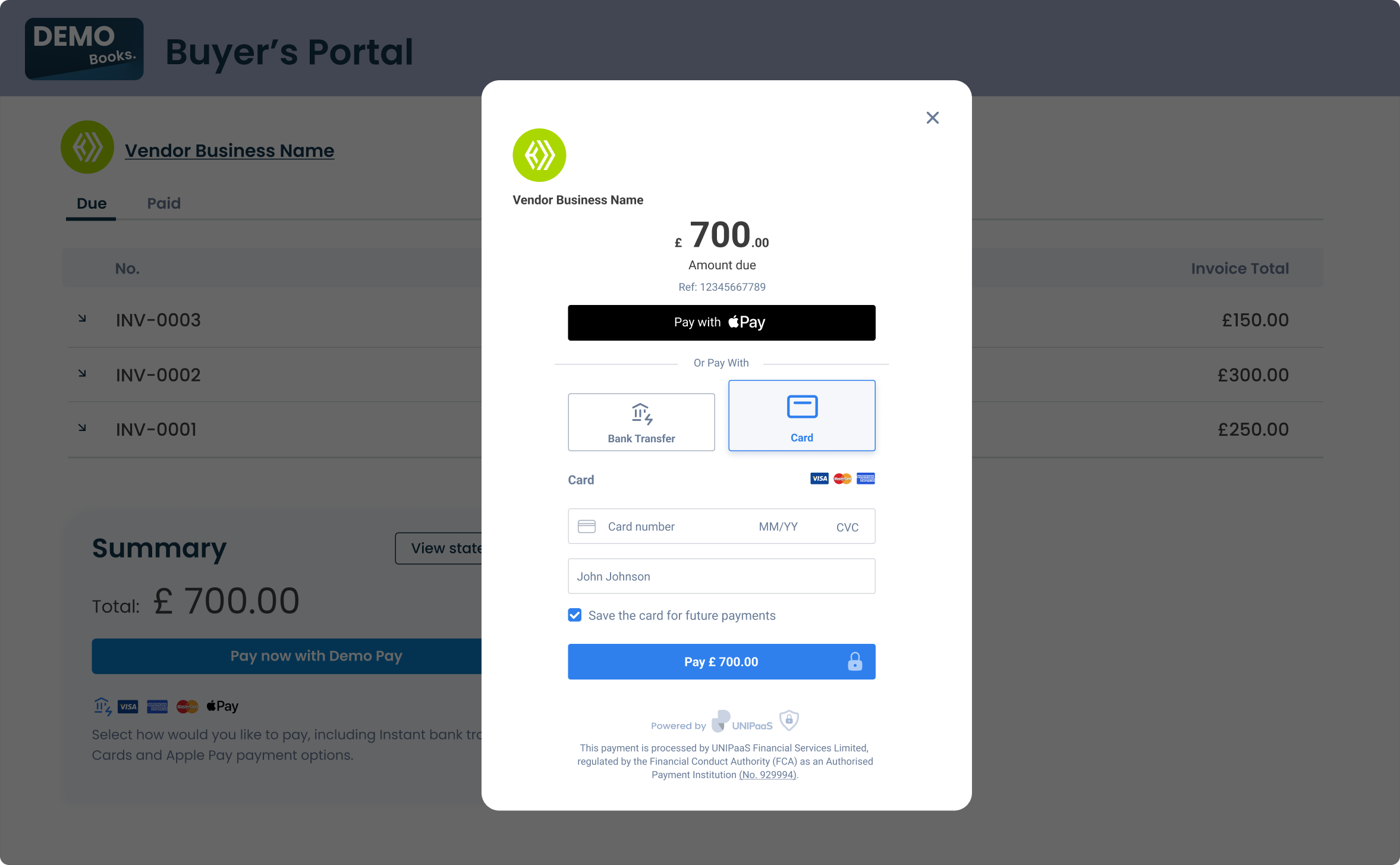
The Checkout Page will load with the payment methods configured for your platform and following your checkout creation process.
:::note
Allocate the minimal space for the Checkout Page UI Web Embed as follows:
Width - 360 pixels
:::
**Create a container**
Place the following script tag element below the closing `` tag of your HTML page.
Make sure to assign a unique ID to the container so that it can be easily identified and accessed.
```html
```
**Create and mount an instance below the container**
Create an instance of it and mount it to the container DOM node in your page. This should be done after the previous div has finished loading.
```javascript
const checkout = components.create("checkout");
checkout.mount("#checkout");
```
***
# 1. Authorization
In order to load the checkout UI Web-Embeds in your platform, an authorized API call is needed in your backend.
## Generate an access token
To obtain an access token, you need first create a checkout using [POST/pay-ins/checkout](https://docs.unipaas.com/reference/websdkpayincontroller_createcheckout) endpoint.
[Learn more about payment creation](https://docs.unipaas.com/docs/create-payment)
Below is an example of the JSON payload for creating a payment:
```json
{
"amount": 100,
"currency": "GBP",
"country": "GB",
"vendorId": "66532df5d55926b2b12a874a",
"email": "consumer_name@example.com",
"reference": "Payment123",
"description": "Payment for service",
"consumer": {
"name": "consumer.name",
"reference": "CON-REF-123"
}
}
```
In response to this API call, you will receive a session token along with other parameters:
```json
"sessionToken": "eyJhbGciOiJIUzI1NiIsInR5cCI6IkpXVCJ9.eyJtZXJjaGFudElkIjoiNjEwNjZkYjA2MzBmNGUzNTlkYzA4NGU5IiwibWVyY2hhbnROYW1lIjoiQWxpY2UiLCJhbW91bnQiOjEwMCwiY3VycmVuY3kiOiJHQlAiLCJlbWFpbCI6InVzZXJAZXhhbXBsZS5jb20iLCJjb3VudHJ5IjoiR0IiLCJzZWxsZXJJZCI6IjY2NWVkMjEyZmNkZjBjZmVjM2M4N2UwMiIsInZlbmRvcklkIjoiNjY1ZWQyMTJmY2RmMGNmZWMzYzg3ZTAyIiwic2NvcGVzIjpbIndlYnNka19hY2Nlc3MiLCJkaXJlY3RfZGViaXRfcmVhZCJdLCJpc1JlY3VycmluZyI6ZmFsc2UsInBheW1lbnRMaW5rSWQiOiJMa1FUMTJnTC1VIiwiaWF0IjoxNzE4NjA0ODk3LCJleHAiOjE3MTg2MDY2OTd9.tfW5IUKOdes4Lb0g5laFCyFZzySzfwe0gHo6Ohi2pqI"
```
This session token is necessary for loading the Checkout Page UI Web-Embed.
# 2. Installation
**Script tag**
Start with placing the following script tag element inside of the ``of your HTML page:
```html
```
This script tag loads the JavaScript code that provides the functionality for implementing UNIPaaS UI Web-Embeds on a webpage. When the script is loaded and executed, it will create an object in the memory that contains methods for instantiating and interacting with the UI Web-Embeds.
**General configuration**
Place the following script tag element below the closing `` tag of your HTML page.
This script is used to initialize and configure UNIPaaS UI Web-Embeds on a web page.
```html
```
### Theme
The theme configuration allows you to customize the visual design of UNIPaaS UI Web-Embeds to match your product's branding. The theme comes with a set of pre-defined variables that are automatically applied based on the selected theme type, such as "dark" or "default". However, if you need to modify specific aspects of the theme, you can easily adjust these variables to suit your requirements. The variables can be used to override the aspects of the theme.
Below is a table that explains each variable available for customization:
| Name | Type | Description |
| ------------------------- | ------ | -------------------------------------------------------------------------------------------------------------------- |
| `theme.type` | string | Specifies the theme type, such as "light" or "dark". |
| `BackgroundColor` | string | Defines the primary background color for the UI Web-Embeds. |
| `primaryTextColor` | string | Determines the color for primary text elements, including the checkout amount, vendor name, and payment method name. |
| `secondaryTextColor` | string | Specifies the color for secondary text elements, including the reference number and save card for future payments. |
| `primaryColor` | string | Defines the color of the Pay button and other significant elements |
| `primaryInputTextColor` | string | Defines the text color of the input values (i.e. card number) |
| `digitalWalletButtonMode` | string | Determines the display mode for digital wallet buttons, such as "white" or "black". |
# 3. Implementation of the Embedded Checkout
> 📘 **Note!**
>
> Please note that when mounting a component using a selector, the component should not be mounted more than once per selector. Mounting a component more than once can lead to unexpected behavior and issues.
>
> To avoid this, make sure to check whether the component has already been mounted before calling the mount method.
## Checkout Page UI Web-Embed
The Checkout Page will load with the payment methods configured for your platform and following your checkout creation process.
:::note
Allocate the minimal space for the Checkout Page UI Web Embed as follows:
Width - 360 pixels
:::
**Create a container**
Place the following script tag element below the closing `` tag of your HTML page.
Make sure to assign a unique ID to the container so that it can be easily identified and accessed.
```html
```
**Create and mount an instance below the container**
Create an instance of it and mount it to the container DOM node in your page. This should be done after the previous div has finished loading.
```javascript
const checkout = components.create("checkout");
checkout.mount("#checkout");
```
_**Disable specific payment methods (optional)**_
You can optionally disable GooglePay when creating the embedded checkout component. To disable Google Pay:
```javascript
const checkout = components.create("checkout", {
disableGooglePay: true
});
```
This can be useful if Google Pay is not supported in your use case, market, in-app or desired payment configuration. When disabled, Google Pay will not be displayed to buyers in the checkout UI.
> 📘 **Note!**
>
> **Loading Unipaas Checkout inside an iframe is not recommended**
>
> Some checkout flows depend on top-level browser navigation and cannot be completed from within an iframe.
> _For example, Open Banking redirect flows require top-level navigation to function correctly._
>
> Modern browsers, payment providers, and third-party services enforce these restrictions through security and permissions policies (such as X-Frame-Options, Content-Security-Policy, and Permissions Policy), and they cannot be bypassed.
## Digital Wallet (Apple Pay / Google Pay) UI Web-Embed
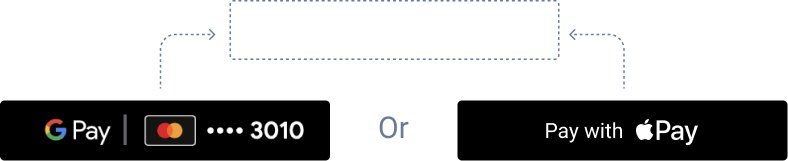
The Digital Wallet UI Web Embed will intelligently load the appropriate payment method, either Apple Pay or Google Pay, or none of them.
 Apple Pay and Google Pay are never displayed together due to OS restrictions. Apple Pay is exclusive to Apple devices with Apple Wallet installed, while Google Pay is designed for Android devices and operates through the Google Pay app.
| Browser and wallet | Button displayed |
| :---------------------------------------------- | :------------------ |
| Safari + Apple Pay enabled | Apple Pay |
| Chrome on iOS 16 + Apple Pay enabled | Apple Pay |
| Any browser on Android + Google Pay enabled | Google Pay |
| Any browser + No active Apple Pay or Google Pay | No button displayed |
:::note
Allocate the minimal space for the Digital Wallet UI Web-Embed as follows:
Width - 150 pixels
:::
**Create a container**
Place the following script tag element below the closing `` tag of your HTML page.
Make sure to assign a unique ID to the container so that it can be easily identified and accessed.
```html
```
**Create and mount an instance below the container**
Create an instance of it and mount it to the container DOM node in your page. This should be done after the previous div has finished loading.
```javascript
const digitalWallet = components.create("digitalWallet");
digitalWallet.mount("#digital_wallet");
```
Apple Pay and Google Pay are never displayed together due to OS restrictions. Apple Pay is exclusive to Apple devices with Apple Wallet installed, while Google Pay is designed for Android devices and operates through the Google Pay app.
| Browser and wallet | Button displayed |
| :---------------------------------------------- | :------------------ |
| Safari + Apple Pay enabled | Apple Pay |
| Chrome on iOS 16 + Apple Pay enabled | Apple Pay |
| Any browser on Android + Google Pay enabled | Google Pay |
| Any browser + No active Apple Pay or Google Pay | No button displayed |
:::note
Allocate the minimal space for the Digital Wallet UI Web-Embed as follows:
Width - 150 pixels
:::
**Create a container**
Place the following script tag element below the closing `` tag of your HTML page.
Make sure to assign a unique ID to the container so that it can be easily identified and accessed.
```html
```
**Create and mount an instance below the container**
Create an instance of it and mount it to the container DOM node in your page. This should be done after the previous div has finished loading.
```javascript
const digitalWallet = components.create("digitalWallet");
digitalWallet.mount("#digital_wallet");
```
 ## Card UI Web-Embed
The Card UI Web-Embed includes two input fields for entering card details and cardholder name, a checkbox for saving the card (supporting card tokenization for returning customers), and a payment button to complete the transaction.
:::note
Allocate the minimal space for the Card UI Web Embed as follows:
Width - 340 pixels
:::
**Create a container**
Place the following script tag element below the closing `` tag of your HTML page.
Make sure to assign a unique ID to the container so that it can be easily identified and accessed.
```html
```
**Create and mount an instance below the container**
Create an instance of it and mount it to the container DOM node in your page. This should be done after the previous div has finished loading.
```javascript
const card = components.create("card");
cards.mount("#card");
```
## Card UI Web-Embed
The Card UI Web-Embed includes two input fields for entering card details and cardholder name, a checkbox for saving the card (supporting card tokenization for returning customers), and a payment button to complete the transaction.
:::note
Allocate the minimal space for the Card UI Web Embed as follows:
Width - 340 pixels
:::
**Create a container**
Place the following script tag element below the closing `` tag of your HTML page.
Make sure to assign a unique ID to the container so that it can be easily identified and accessed.
```html
```
**Create and mount an instance below the container**
Create an instance of it and mount it to the container DOM node in your page. This should be done after the previous div has finished loading.
```javascript
const card = components.create("card");
cards.mount("#card");
```