# Implement Direct Debit With UI Web-Embeds

# General overview

If you are unfamiliar with Direct Debit and how it works in UNIPaaS, please refer to [this article](https://docs.unipaas.com/docs/direct-debit) first.

In this section, you will be guided through the steps necessary to implement the Direct Debit payment method within your embedded payments solution, by leveraging the UNIPaaS UI Web-Embeds. Applying these will significantly reduce the integration effort required by your team to add Direct Debit to your offering.

## The following UI Web-Embeds/services are required for Direct Debit to work:

* [Invoice end point](https://docs.unipaas.com/docs/implement-direct-debit-with-ui-web-embeds#invoice-end-point)
* [Invoice UI Web-Embed](https://docs.unipaas.com/docs/implement-direct-debit-with-ui-web-embeds#invoice)
* [Pay Portal UI Web-Embed](https://docs.unipaas.com/docs/implement-direct-debit-with-ui-web-embeds#pay-portal)
* [Notification UI Web-Embed **OR** notification/create webhooks](https://docs.unipaas.com/docs/implement-direct-debit-with-ui-web-embeds#notification)
* [Mandate Request UI Web-Embed](https://docs.unipaas.com/docs/implement-direct-debit-with-ui-web-embeds#mandate-request)(only for a mandate request flow outside of the Invoice UI Web-Embed)

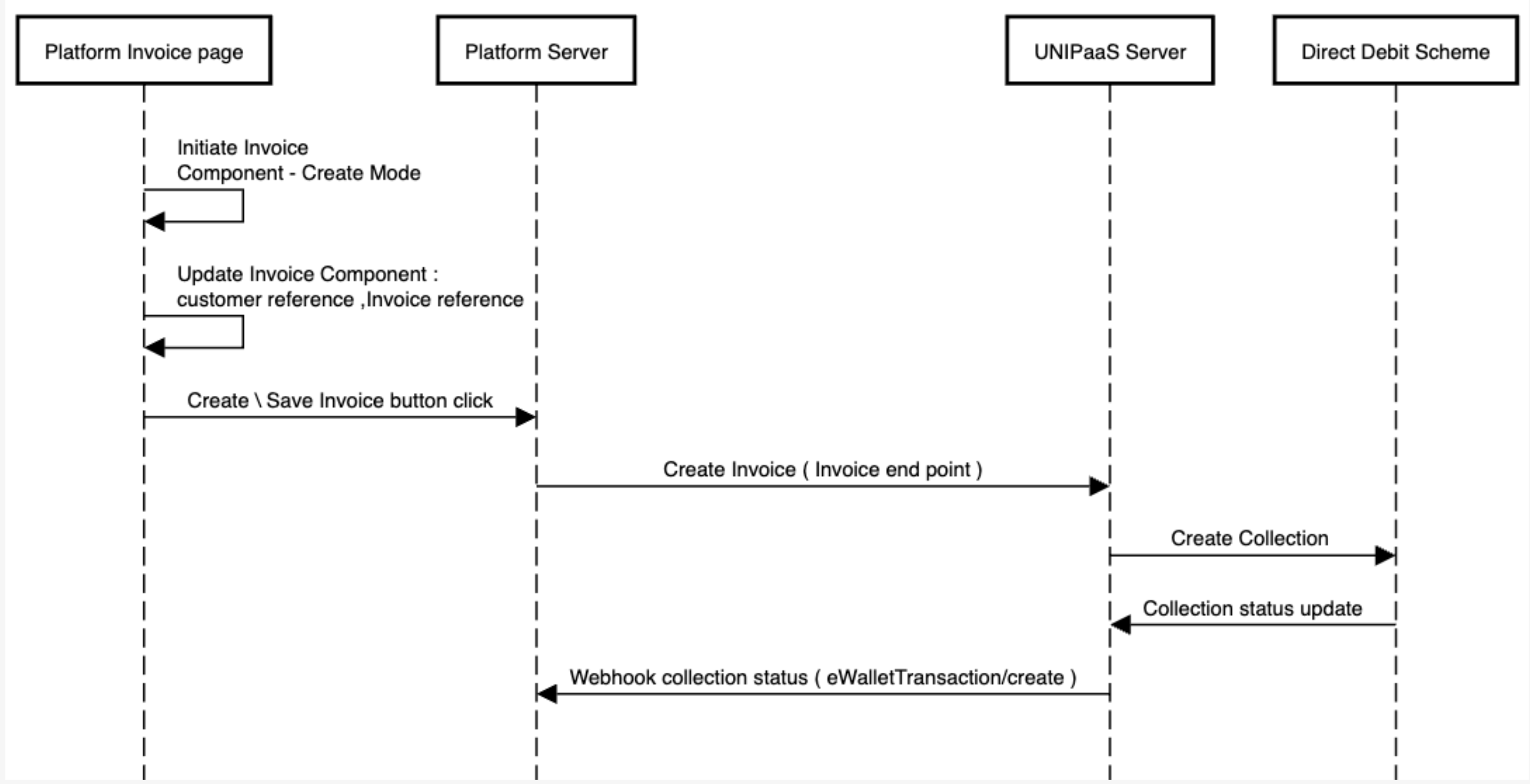
## Sequence diagram for a Direct Debit collection flow:

<img src="/images/e96d2fe-Screen_Shot_2023-07-06_at_11.54.38.png" alt="" style="display:block;margin:0 auto" />

# How to implement

## Invoice endpoint

* In order to trigger Direct Debit collections (both one-off and recurring), it is required to use the invoice endpoint. This provides us with the relevant information for a Direct Debit collection.
* Learn about this service and how to implement it [here](https://docs.unipaas.com/docs/invoices).
* Handling recurring invoices - see [here](https://docs.unipaas.com/docs/invoices-endpoint#handling-recurring-repeat-invoices).
* UNIPaaS will support changes made to invoices that are due to be collected via Direct Debit. We currently support changes in invoice amount or due date. You will need to inform us of these changes via the [update invoice](https://docs.unipaas.com/docs/invoices#update-invoice) method.
* Invoice endpoint attributes:

<table>
  <thead>
    <tr>
      <th>
        Name
      </th>

      <th>
        Is Required
      </th>

      <th>
        Type
      </th>

      <th>
        Description
      </th>
    </tr>
  </thead>

  <tbody>
    <tr>
      <td>
        `currency`
      </td>

      <td>
        Yes
      </td>

      <td>
        ISO 4217
      </td>

      <td>
        The currency of the invoice
      </td>
    </tr>

    <tr>
      <td>
        `totalAmount`
      </td>

      <td>
        Yes
      </td>

      <td>
        Number
      </td>

      <td>
        The total invoice amount
      </td>
    </tr>

    <tr>
      <td>
        `totalPaid`
      </td>

      <td>
        No
      </td>

      <td>
        Number
      </td>

      <td>
        The total amount paid so far on this invoice.\
        If not provided, will be set to 0 by default.
      </td>
    </tr>

    <tr>
      <td>
        `reference`
      </td>

      <td>
        Yes
      </td>

      <td>
        String
      </td>

      <td>
        The invoice number on your system.
      </td>
    </tr>

    <tr>
      <td>
        `batchId`
      </td>

      <td>
        No
      </td>

      <td>
        String
      </td>

      <td>
        The ID of the batch that this invoice was included in.
      </td>
    </tr>

    <tr>
      <td>
        `vatAmount`
      </td>

      <td>
        No
      </td>

      <td>
        Number
      </td>

      <td>
        The total VAT amount for the invoice (can be 0).\
        If not provided, will be set to 0 by default.
      </td>
    </tr>

    <tr>
      <td>
        `publicUrl`
      </td>

      <td>
        No
      </td>

      <td>
        String
      </td>

      <td>
        A public URL to the invoice PDF version.
      </td>
    </tr>

    <tr>
      <td>
        `dueDate`
      </td>

      <td>
        Yes
      </td>

      <td>
        Date
      </td>

      <td>
        The invoice due date.
      </td>
    </tr>

    <tr>
      <td>
        `lineItems`
      </td>

      <td>
        Yes
      </td>

      <td>
        Array 
      </td>

      <td>
        Line item object - see table below.
      </td>
    </tr>

    <tr>
      <td>
        `Customer`
      </td>

      <td>
        Yes
      </td>

      <td>
        Object
      </td>

      <td>
        Customer object - see table below.
      </td>
    </tr>

    <tr>
      <td>
        `paymentStatus`
      </td>

      <td>
        Yes
      </td>

      <td>
        Enum
      </td>

      <td>
        Current invoice payment  status:\
        Unpaid = `unpaid`\
        Paid = `paid`\
        Partially Paid = `partially_paid `\
        Refunded = `refunded`\
        PartiallyRefunded = `partially_refunded`
      </td>
    </tr>

    <tr>
      <td>
        `paymentMethods`
      </td>

      <td>
        No
      </td>

      <td>
        Array, Enum
      </td>

      <td>
        States which payment methods will be available for this specific invoice.  

        * \*Note:\*\* If Direct Debit is selected, the invoice cannot be paid with UNIPaaS in any other method.  

        Available Payment Methods:\
        `creaditCard`\
        `bankTransfer`\
        `directDebit`\
        `offlineBankTransfer`\
        `paypal`  

        Important - when the Invoice UI Web-Embed **is not implemented** (e.g., in the recurring payment flow), it is critical to send this parameter with `directDebit` for every recurring payment if Direct Debit is to be used to collect the payment.  

        * Based on platform configuration
      </td>
    </tr>

    <tr>
      <td>
        `invoiceObject`
      </td>

      <td>
        No
      </td>

      <td>
        Object
      </td>

      <td>
        The invoice object in its original form as created on your platform.
      </td>
    </tr>

    <tr>
      <td>
        `isRecurring`
      </td>

      <td>
        Yes
      </td>

      <td>
        Boolean
      </td>

      <td>
        Indicates if this invoice is a recurring one.
      </td>
    </tr>

    <tr>
      <td>
        `subscriptionId`
      </td>

      <td>
        No
      </td>

      <td>
        String
      </td>

      <td>
        The recurring invoice subscription identifier.
      </td>
    </tr>
  </tbody>
</table>

`lineItem` **attributes:**

| Name          | Is Required | Type   | Description                                     |
| :------------ | :---------- | :----- | :---------------------------------------------- |
| `description` | Yes         | String | A description for a specific line item          |
| `amount`      | Yes         | Number | A price of a unit for a specific line item      |
| `quantity`    | Yes         | Number | The quantity of a unit for a specific line item |

`customer` **attributes:**

| Name        | Is Required | Type   | Description                   |
| :---------- | :---------- | :----- | :---------------------------- |
| `reference` | Yes         | String | Platform customer identifier. |
| `name`      | Yes         | String | The customer full name.       |
| `id`        | No          | String | UNIPaaS customer identifier.  |
| `email`     | No          | String | The customer's email address. |

## Invoice

* Learn about this UI Web-Embed [here](https://docs.unipaas.com/docs/ui-web-embeds#invoice) and learn how to [install](https://docs.unipaas.com/docs/ui-web-embeds-integration-guide#2-installation) and implement it [here](https://docs.unipaas.com/docs/ui-web-embeds-integration-guide#invoice).
* Add invoice mode (`create` / `edit` / `view`), as described in the [implementation guide](https://docs.unipaas.com/docs/ui-web-embeds-integration-guide#invoice). Mandatory.
* Add invoice reference in all invoice modes that exist in your platform (`create`, `edit`, `view`). Mandatory.
* Add customer reference. This lets UNIPaaS know if the customer has a Direct Debit mandate set up with the vendor. Mandatory.

## Pay Portal

* Learn about this UI Web-Embed [here](https://docs.unipaas.com/docs/ui-web-embeds#pay-portal) and learn how to [install](https://docs.unipaas.com/docs/ui-web-embeds-integration-guide#2-installation) and implement it [here](https://docs.unipaas.com/docs/ui-web-embeds-integration-guide#pay-portal).
* There are no Direct Debit considerations for this implementation.

## Mandate Request

* Learn about this UI Web-Embed [here](https://docs.unipaas.com/docs/ui-web-embeds#mandate-request) and learn how to [install](https://docs.unipaas.com/docs/ui-web-embeds-integration-guide#2-installation) and implement it [here](https://docs.unipaas.com/docs/ui-web-embeds-integration-guide#mandate-request).
* Ensuring that Direct Debit is enabled for the vendor is highly important before presenting them with the Mandate Request UI Web-Embed. This verification can be achieved through the [GET/vendors/\{vendorId}/payment-options/available](https://docs.unipaas.com/reference/vendorpaymentoptionscontroller_getavailablepaymentoptions) endpoint.

## Notification

* Learn about this UI Web-Embed [here](https://docs.unipaas.com/docs/ui-web-embeds#notifications) and learn how to [install](https://docs.unipaas.com/docs/ui-web-embeds-integration-guide#2-installation) and implement it [here](https://docs.unipaas.com/docs/ui-web-embeds-integration-guide#notification).
* There are no Direct Debit considerations for this implementation.

> 🚧 Note
>
> If you don't implement the Notification UI Web-Embed, you will need to implement the notification/create webhook and implement it in the flow of your choice. See more on the notification/create service [here](https://docs.unipaas.com/docs/vendor-notifications-webhook).

> ✅ Tip
>
> We strongly recommend implementing a mandate set up flow from your vendors' customer list. See [API implementation guide](https://docs.unipaas.com/docs/implement-direct-debit-via-api) for more details.

# Example of UI Web-Embeds implementation:

```html
<!DOCTYPE html>
<html lang="en">
<head>
    <script type="application/javascript" src="https://cdn.unipaas.com/embedded-ui.js"></script>
    <meta charset="UTF-8">
    <title>Direct Debit</title>
</head>
<body>
<h1>Invoice:</h1>

<h1>Request Mandate:</h1>

<h1>Pay Portal:</h1>

<h1>Notification:</h1>

<script type="text/javascript">
    async function getTokenToken() {
        const url = "https://sandbox.unipaas.com/platform/authorize";
        const secretKey = "gc2haOpujHMbKjAWk3UUWw==";
        const vendorId = "64f8744b29095f715494b228";
        const scopes = ["portal_read","portal_write","onboarding_write","invoice_read", "invoice_write"]
        const options = {
            method: "POST",
            headers: {
                "Accept": "application/json",
                "Authorization": `Bearer ${secretKey}`,
                "Content-Type": "application/json"
            },
            body: JSON.stringify({
                scopes,
                vendorId
            })
        };
        try {
            const response = await fetch(url, options);
            if (!response.ok) {
                throw new Error('Network response was not ok');
            }
            const data = await response.json();
            return data.accessToken; // Assuming the access token is in the response
        } catch (error) {
            console.error('There was a problem with the fetch operation:', error);
            return null;
        }
    }
    async function initializeUniPAAS() {
        const accessToken = await getTokenToken();
        if (accessToken) {
            const config_general = {
                paymentsEnabled: true,
                theme: {
                    colors: {
                        primaryColor: "#2F80ED",
                        secondaryColor: "#687B97",
                        accentTextColor: "#2F80ED",
                        primaryButtonColor: "#2F80ED"
                    },
                    fontFamily: "inherit",
                    boxShadow: "0px 3px 15px rgba(27, 79, 162, 0.11)"
                }
            }
            const components = unipaas.components(accessToken, config_general);
            const config_invoice = {
                mode: 'create',
                customer: {
                    reference: '1234xxx',
                    name: 'John Doe',
                    email: 'john@email.com',
                },
                invoice: {
                    reference: 'INV-1234xxxx',
                }
            };
            const invoice = components.create("invoice", config_invoice);
            invoice.mount("#invoice");
            const config_mandate = {
                customer: {
                    reference: '1234xxx',
                    name: 'John Doe',
                    email: 'john@email.com',
                }
            };
            const request_mandate = components.create("requestMandate", config_mandate);
            request_mandate.mount("#request_mandate");
            const payPortal = components.create("payPortal");
            payPortal.mount("#pay_portal");
            const config_notif = {
                icon: {
                    url: 'https://cdn.unipaas.com/img/bell-icon.svg',
                    size: 30
                }
            };
            const notification = components.create("notification", config_notif);
            notification.mount("#notification");
        }
    }
    initializeUniPAAS();
</script>
</body>
</html>
```