

Apple Pay and Google Pay™
Provide your customers with the convenience of using Apple Pay and Google Pay™ as payment methods on your Checkout Page. This allows buyers, who have saved their card information in their Apple or Google digital wallets, to enjoy a smooth and effortless payment process.
Benefits
- Enhanced customer satisfaction: Offer Google Pay and Apple Pay for a one-click checkout experience, increasing customer satisfaction and loyalty.
- Increased conversion rates: Simplify the payment process, reducing friction and improving conversion rates.
- Heightened security: The Payment Services Directive 2 (PSD2) mandates Strong Customer Authentication (SCA) for high-value online purchases within the EU to verify the cardholder’s identity. Buyers using Apple Pay and Google Pay are identified biometrically, eliminating the need for additional identification.
- Reduced chargeback rates: Apple Pay and Google Pay transactions boast high levels of security, resulting in lower chargeback rates. This reduces the financial risks for merchants, providing added peace of mind when accepting payments.
- Future-proof your platform: Stay ahead of emerging payment trends and demonstrate your commitment to modern and convenient solutions.
How to accept payments with Apple Pay and Google Pay™
Section titled “How to accept payments with Apple Pay and Google Pay™”Hosted checkout page
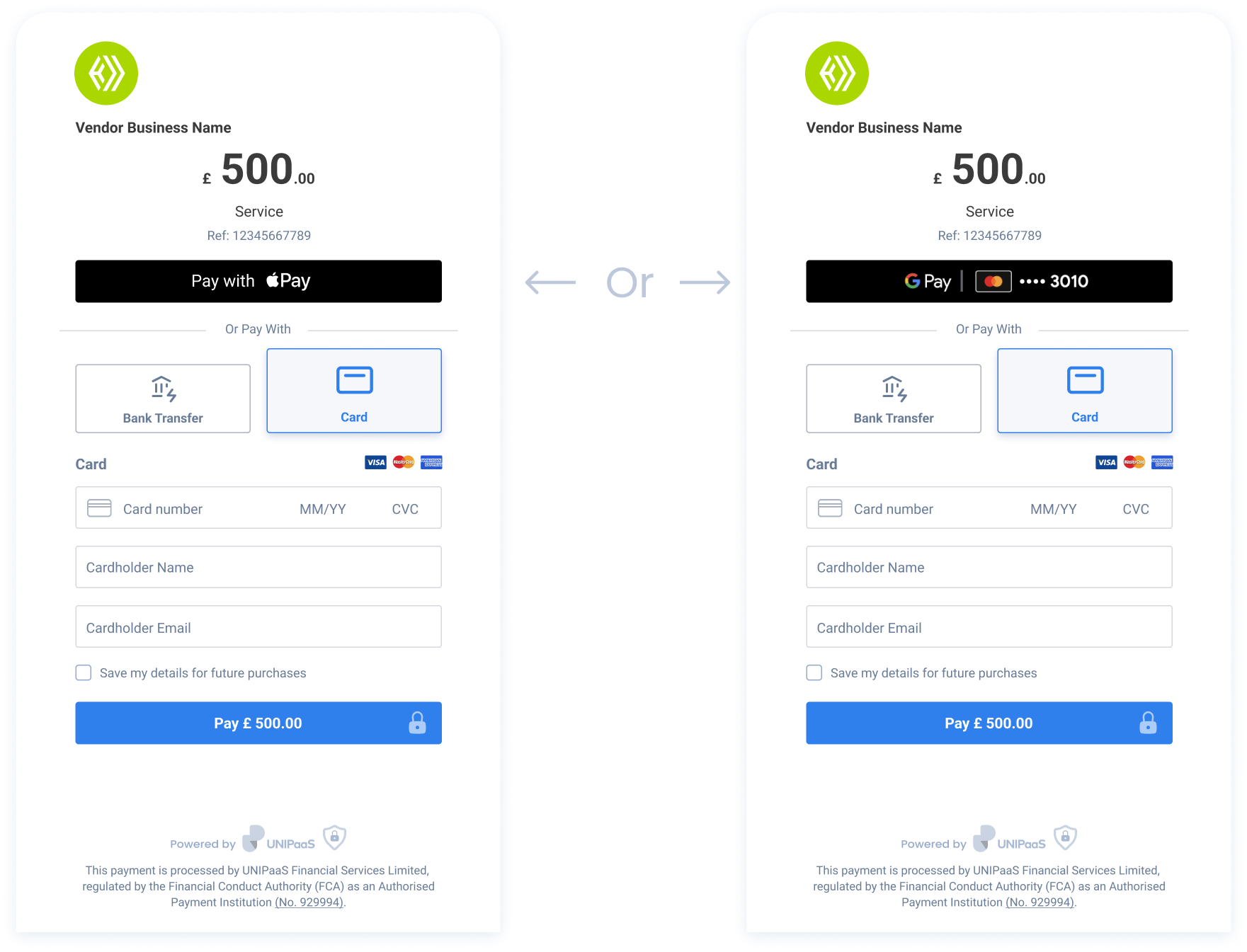
Section titled “Hosted checkout page”The UNIPaaS hosted checkout page automatically presents a digital wallet option based on buyer’s preferences and browser compatibility. If buyers have enabled Apple Pay or Google Pay on their devices, they can effortlessly use these payment methods.
Google Pay™ policies: Use of Google Pay™ is subject to the Google Pay APIs Acceptable Use Policy and the Google Pay API Terms of Service. By offering Google Pay™ through the UNIPaaS hosted checkout page, you agree to comply with both.
Apple Pay and Google Pay are never displayed together due to OS restrictions. Apple Pay is exclusive to Apple devices with Apple Wallet installed, while Google Pay is available on Android devices and in Chromium-based browsers (such as Chrome) across platforms when a Google Pay wallet is signed in.
| Environment and wallet | Button displayed |
|---|---|
| Safari + Apple Pay enabled | Apple Pay |
| Chrome on iOS 16 + Apple Pay enabled | Apple Pay |
| iOS app + Apple Pay enabled | Apple Pay |
| Chromium-based browser (e.g. Chrome) + Google Pay enabled | Google Pay |
| Android app + Google Pay enabled | Google Pay |
| No active Apple Pay or Google Pay | No button |
Embedded Components
Section titled “Embedded Components”By integrating Google Pay and Apple Pay into your platform using UNIPaaS embedded components, you can simplify PCI compliance requirements while retaining full control over your checkout page’s styling. Both Google Pay and Apple Pay provide secure handling of sensitive credit card information, since they fully support Strong Customer Authentication (3DSecure 2) for enhanced security.
Google Pay™ policies: Use of Google Pay™ is subject to the Google Pay APIs Acceptable Use Policy and the Google Pay API Terms of Service. By offering Google Pay™ through UNIPaaS embedded components, you agree to comply with both.
Prerequisites
Section titled “Prerequisites”- Set up the UNIPaaS embedded components
- Serve your application securely: ensure HTTPS usage across all environments
- Contact us at support@unipaas.com in order to register your domain(s) with Apple Pay and/or Google Pay
- Use supported browsers and enabled digital wallets for testing
Apple Pay
Section titled “Apple Pay”Add Apple Pay payment method to your checkout page by using UNIPaaS embedded components. Apple Pay payment method consists of a single button component, that triggers the built-in Apple checkout experience.
Apple Pay is available to cardholders exclusively at supported banks. The Apple Pay button will only be visible to buyers with supported browser and device combination
Apple Pay and SCA
Online payment transactions processed in European Economic Area (EEA) countries must comply with Strong Customer Authentication (SCA) requirements under the second Payment Services Directive (PSD2).
Apple Pay utilizes biometric authentication methods such as fingerprint or facial recognition on supported devices. This enables customers to easily authenticate themselves during the payment process, meeting the SCA requirements for multi-factor authentication.
Apple guidelines
While our embedded components provide significant flexibility for checkout page design, it’s important to adhere to specific UI guidelines when implementing Apple Pay.
To ensure compliance with Apple Pay and maximize your checkout page’s conversion rate, it is crucial to prioritize Apple Pay as the primary payment method. This can be achieved by featuring Apple Pay prominently, such as displaying it first or pre-selecting it. Additionally, it is essential to adhere to all Apple human interface guidelines, which can be found at Apple human interface guidelines. By following these guidelines, you can create a seamless and user-friendly payment experience for your customers while meeting Apple’s requirements.
Google Pay™
Section titled “Google Pay™”UNIPaaS is a Google Pay supported payment processor. UNIPaaS processes Google Pay transactions on your behalf — no Google Pay API integration, certification, or Google console setup is required on your side. All wallet configuration, token handling, and processing is managed end to end by UNIPaaS.
How it works
When a buyer pays with Google Pay, UNIPaaS receives and processes the encrypted Google Pay payment token on your behalf. All Google Pay configuration is managed by UNIPaaS — no Google Pay API integration, certification, or console setup is required on your side.
Domain registration
Google Pay domain registration is handled by UNIPaaS on your behalf. To register them, send UNIPaaS the domain(s) for all environments of your platform integration (e.g. sandbox and production). On unregistered domains the Google Pay button still renders, but the payment will throw an error.
Using your own Google Pay account
You only need your own Google Pay account if your platform integrates Google Pay inside a native app. If you are not using a native app, do not set up your own Google Pay account — UNIPaaS manages everything for you.
If you do use a native app: manage your own Google Pay account, select Gateway (not direct) when configuring Google Pay — with UNIPaaS as the gateway — and approve both the domain and the app (not the app alone) in your Google Pay account. Notify UNIPaaS once you have done so for all of your environments.
Testing in sandbox
No setup is required to test. The environment is selected automatically based on which UNIPaaS environment you use:
- When you use the UNIPaaS sandbox, Google Pay automatically runs against Google’s TEST environment — no real charge is ever made, and the payment sheet displays a “test card” indicator.
- When you use UNIPaaS production, Google Pay runs against Google’s PRODUCTION environment.
Going live
No code changes are required to go live. When your account is enabled for production, the checkout automatically uses Google Pay’s PRODUCTION environment. Contact UNIPaaS support to enable Google Pay on your production account.
Branding
The Google Pay™ button rendered by UNIPaaS follows the official Google Pay brand guidelines. When referring to Google Pay™ in your own UI, marketing materials, or documentation, always use the full name “Google Pay” as described in the brand guidelines.