

Checkout Page
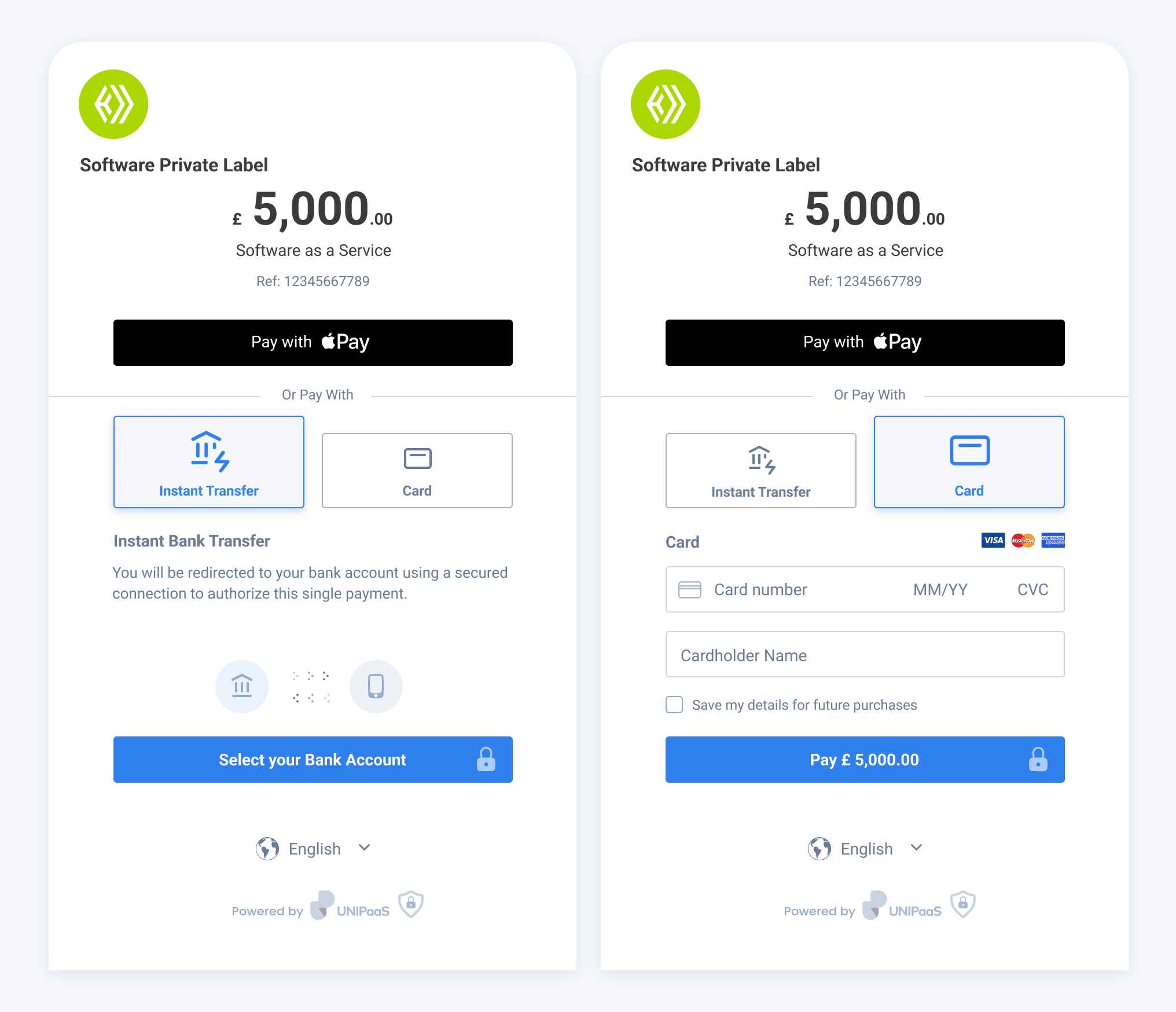
UNIPaaS checkout page allows merchants to accept digital payments on any device or channel.
By using the checkout page you reduce the effort involved in PCI compliance, which is required from merchants handling sensitive credit card information. The checkout page fully supports Strong Customer Authentication (3DSecure 2). Please follow this step-by-step guide for quick integration.
Checkout object properties
Section titled “Checkout object properties”Parameter | Type | Description | Required |
|---|---|---|---|
| Number | The Amount of the payment | Yes |
| String | The Currency of the payment | Yes |
| String | Unique ID from the merchant system | Yes |
| String | The buyer’s email address | Yes |
| String | The buyer’s country code. ISO 2 letters | Yes |
| Array of Objects | Used to split payments between multiple vendors or a vendor and the platform. | Yes |
| String | A url to redirect the user after a successful checkout. | No |
Theitem object (for splitting payments)
The items Object is part of the Checkout Object and describes the order item details per vendor. In this Object you can set the platform fee per vendor.
Field | Description |
|---|---|
| A description of the item |
| The amount of the specific item.
For example: if a buyer uses a coupon and receives a 20GBP discount - we will ask you to send us a new post-discount amount for each item. Numeric example: Discount - 20 You need to send: The |
| The unique Id of the vendor provided by UNIPaaS during vendor Onboarding |
| The fee percentage for a specific item |
Open the link from your website
Section titled “Open the link from your website”Redirect your buyers to the hosted checkout page
Verify the Authorization status from your server side
Section titled “Verify the Authorization status from your server side”When checkout is done and user is redirected to the successfulPaymentRedirect URL, the following parameters will appearAs a parameter in the URL and should be used for verification:
- Authorization ID
- Order ID
- Reference ID
Authorization verification is essential to ensure no manipulation occurred on the client-side.
Make a GET /pay-ins/{authorizationId} request:
curl --location --request GET 'https://sandbox.unipaas.com/platform/pay-ins/{authorizationId}' \--header 'Content-Type: application/json' \--header 'Authorization: Bearer --PRIVATE_KEY--'Authorization status must be CAPTURED for a successful Authorization.
Check the Authorization statuses options for more information.
Deactivate checkout page
Section titled “Deactivate checkout page”You can deactivate the checkout page that is set for online payment methods such as cards, instant bank transfers, or alternative payment methods (APMs). The deactivation feature is unavailable for checkouts set to offline payment methods like Direct Debit.
To deactivate your checkout page and make it unavailable, use the following endpoint:
POST /pay-ins/checkout/{signedLinkId}/expire
The request should not include a body.
Possible response:
Status Code | Description | Response |
|---|---|---|
201 | OK | The checkout object |
401 | Not Authorized | |
404 | Not Found | “Checkout does not exist” |
405 | Not Allowed | “Checkout expired and can not be edited” - in case you are trying to deactivate an expired checkout. Or “This checkout is for offline payment method. Can not be expired” - in case you’re trying to deactivate a checkout that is set to Direct Debit (which is offline payment method). |
Test your integration
Section titled “Test your integration”Use our test scenarios test your integration