

Vendor UI: Invoice Component
Invoices serve as records of the outstanding balances owed by customers and can be generated either on a one-time basis or periodically for subscription-based services.
Platforms typically have the capability to autonomously generate invoices for their businesses, or to integrate with accounting software platforms to retrieve invoices from there.
Benefits of matching invoices to transactions
Section titled “Benefits of matching invoices to transactions”Regulatory compliance assurance: Unipaas uses invoice information to stay compliant with relevant financial regulations and industry standards, ensuring a secure and trustworthy payment environment for both your platform and your customers.
Seamless payment collection with Direct Debit: Unipaas leverages invoice data to enable smooth and hassle-free payment collection through Direct Debit, streamlining the payment process for users.
Enhanced user experience: Unipaas aims to clearly display the correlation between payments and corresponding invoices, providing users with enhanced transparency, improved reconciliation and better understanding of their financial activity.
Accurate invoice references at checkout: Unipaas ensures that checkout pages present the correct and up-to-date invoice references, reducing errors and offering a more reliable payment experience to buyers.
Tailored payment options: Leveraging the insights from invoice data, Unipaas is able to offer relevant and appropriate payment methods, differentiating between recurring and one-time invoices to meet diverse user needs effectively.
Implementation Steps
Section titled “Implementation Steps”- Authorization
- Installation
- Implementation of Invoice Component on your webpage
- Optional: Reset the Invoice Component on the webpage
- DOM EventListeners
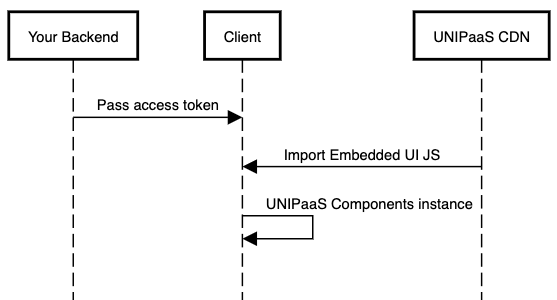
1. Authorization
Section titled “1. Authorization”In order to load the Invoice Component in your platform, an authorized API call is needed in your backend with defined scopes and a vendor ID (if applicable) to generate the access token.
Generate an access token
Section titled “Generate an access token”Below is an example of the payload for generating an access token:
`curl -X POST "https://sandbox.unipaas.com/platform/authorize"2 -H "accept: application/json"3 -H "Authorization: Bearer <PLATFORM_SECRET_KEY>"4 -H "Content-Type: application/json"5 --data-raw '{6 "scopes": ["portal_read","portal_write","onboarding_write","invoice_read","invoice_write"],7 "vendorId": "{vendorId}"8 }'`const request = require("request");const url = "https://sandbox.unipaas.com/platform/authorize";const secretKey = "<PLATFORM_SECRET_KEY>";const vendorId = "<YOUR_VENDOR_ID>";const scopes = ["portal_read", "portal_write", "onboarding_write" , "invoice_read" , "invoice_write"]
const options = { url, method: "POST", headers: { "Accept": "application/json", "Authorization": `Bearer ${secretKey}`, "Content-Type": "application/json" }, body: JSON.stringify({ scopes, vendorId })};
request(options, function (error, response) { if (error) throw new Error(error); console.log(response.body);});| Verb | POST |
| Environment | sandbox |
| URL | https://sandbox.unipaas.com/platform/authorize |
Name | Type | Required | Description |
|---|---|---|---|
| string | YES | The scopes |
| string | YES | The user id on your system |
| string | NO | A vendor ID is a unique identifier for the vendor requesting API access. Note! If you don’t have a vendor ID, do not include the parameter in your API request, then a public access token will be issued |
Response example
Section titled “Response example”{ "accessToken": "eyJhbGciOiJIUzI1NiIsInR5cCI6IkpXVCJ9.eyJzY29wZXMiOlsib25ib2FyZGluZ193cml0ZSIsInBheW91dF93cml0ZSIsImxpbmtfd3JpdGUiLCJvbmJvYXJkaW5nX3dyaXRlIiwibm90aWZpY2F0aW9uX3dyaXRlIiwiY29uZmlnX3JlYWQiLCJkaXJlY3RfZGViaXRfd3JpdGUiLCJld2FsbGV0X3JlYWQiLCJwdWJsaWNfY29uZmlnX3JlYWQiLCJsaW5rX3JlYWQiLCJvbmJvYXJkaW5nX3JlYWQiLCJub3RpZmljYXRpb25fcmVhZCIsImNvbmZpZ19yZWFkIl0sInZlbmRvcklkIjoiNjNkN2E2Njk4NGFkZDc5YWU2YmFmZDg3IiwibWVyY2hhbnRJZCI6IjYxZTZlOTdmZjEyNDJiODIwYzlkNWM4MSIsImVudiI6ImRldiIsImlhdCI6MTY4MTg1MTQ5MCwiZXhwIjoxNjgxODUzMjkwfQ.q5dCR3zfuEWCTG8HdvfEtlY7BmHxvJL0PFinlJSe8uQ", "expiresIn": 3600, "scopes": [ "onboarding_write", "ewallet_write", "payout_write", "link_write", "onboarding_write", "notification_write", "config_read", "direct_debit_write", "checkout_create", "ewallet_read", "public_config_read", "link_read", "onboarding_read", "notification_read", "config_read", "public_config_read", "onboarding_read", "config_read", "notification_read", "public_config_read", "onboarding_write", "direct_debit_write" ], "vendorId": "{vendorId}", "merchantId": "{merchantId}", "merchantName": "{merchantName}", "env": "sandbox"}| Name | Type | Description |
|---|---|---|
accessToken | string | Access token for the UI Web-Embeds |
expiresIn | string | Time until the access token expires (in seconds) |
scopes | string | List of permissions granted for the access token |
vendorId | string | Unique identifier for the vendor requesting access |
merchantId | string | Unique identifier for the platform associated with the vendor |
env | string | The environment in which the access token was issued |
Scopes
| Name | Description |
|---|---|
portal_read | Grants all GET permissions required for using UI Web-Embeds on your platform |
portal_write | Grants all POST permissions required for using UI Web-Embeds on your platform |
onboarding_write | Grants specific POST permissions required for using Onboarding UI Web-Embeds on your platform |
2. Installation
Section titled “2. Installation”Script tag
Start with placing the following script tag element inside of the <head> of your HTML page:
<script type="application/javascript" src="https://cdn.unipaas.com/embedded-ui.js"></script>This script tag loads the JavaScript code that provides the functionality for implementing UNIPaaS UI Web-Embeds on a webpage. When the script is loaded and executed, it will create an object in the memory that contains methods for instantiating and interacting with the UI Web-Embeds.
General configuration
Place the following script tag element below the closing </body> tag of your HTML page.
This script is used to initialize and configure UNIPaaS UI Web-Embeds on a web page.
<script type="text/javascript"> const config_general = { paymentsEnabled: true, theme: { colors: { primaryColor: "#2F80ED", secondaryColor: "#687B97", accentTextColor: "#2F80ED", primaryButtonColor: "#2F80ED" }, fontFamily: "inherit", boxShadow: "0px 3px 15px rgba(27, 79, 162, 0.11)" } } const components = unipaas.components("<accessToken>", config_general);</script>Name | Type | Required | Description |
|---|---|---|---|
| boolean | YES | Indicates whether the UNIPaaS-powered embedded payments are enabled as the default payment provider for the vendor associated with the API request If set to If set to |
Theme customisation allows to match the visual design of the components with your product.
Name | Type | Description |
|---|---|---|
| string | Represents the primary color used for UI Web-Embeds |
| string | Represents the secondary color used for UI Web-Embeds |
| string | Represents the font color used for headers of UI Web-Embeds |
| string | Represents the font color used for primary buttons of UI Web-Embeds |
| string | Represents the font family used for UI Web-Embeds |
| string | Represents the box shadow applied to UI Web-Embeds, used to create a shadow effect |
3. Implementation of Invoice Component on your webpage
Section titled “3. Implementation of Invoice Component on your webpage”Invoice Component should be implemented within 3 types of pages:
- New sales invoice - typically includes fields for inputting customer information, item descriptions, prices, and other relevant details related to the sales invoice creation process.
- Edit sales invoice - typically includes fields for modifying an existing sales invoice information, item descriptions, prices, and other relevant details related to the sales invoice.
- View sales invoice - typically includes fields for viewing an existing sales invoice information.
New sales invoice page
Section titled “New sales invoice page”Step 1: Create a container
Place the following div tag element inside the <body> tag of your HTML page.
Make sure to assign a unique ID to the container so that it can be easily identified and accessed.
<div id="invoice"></div>Step 2: Create and mount an instance below the container
Place the following script tag element below the closing </body> tag of your HTML page.
Create an instance of it and mount it to the container DOM node in your page. This should be done after container (the previous div) has finished loading.
<script type="text/javascript"> const config_invoice = { mode: 'create', //Mandatory customer: { reference: '1234567', //Mandatory name: 'John Doe', //Mandatory email: 'john@email.com', }, invoice: { reference: 'INV-123', //Mandatory } }; // UNIPaaS Components Invoice config type const invoice = components.create("invoice", config_invoice); invoice.mount("#invoice")</script>Name | Type | Required | Description |
|---|---|---|---|
| string | YES | Indicates the type of the invoice page - is the user creating a new invoice, editing or viewing an existing invoice |
| string | YES | Represents the unique identifier for the customer associated with the invoice. |
| string | YES | Represents the name of the customer associated with the invoice. |
| string | NO | Represents the email address of the customer associated with the invoice. |
| string | YES | Represents the unique identifier for the invoice. |
Step 3: Make API call from backend:
Make a POST/platform/vendors/{vendorId}/invoices request from your backend when the invoice is saved on your system with the following parameters.
The invoice object
Section titled “The invoice object”{ "reference": "INV-1234", // Mandatory "currency": "GBP", "totalAmount": 99.5, "vatAmount": 19.9, "dueDate": "2022-12-12T08:42:52.933Z", "paymentStatus": "unpaid", "totalPaid": 0, "customer": { "reference": "1234", // Mandatory "email": "test@gmail.com", "name": "Kevin Malone" // Mandatory }, "lineItems": [ { "description": "line 1", "unitPrice": 10.6, "quantity": 3 }, { "description": "line 2", "unitPrice": 19.3, "quantity": 1 } ], "isRecurring": true, "subscriptionId": "sub-123", "external":false, "batchId": "batch-777", "publicUrl": "http://yourcompany.com/invoice.pdf", "invoiceObject": {}}Attributes
Name | Is Required | Type | Description |
|---|---|---|---|
| Yes | String | The invoice number on your system. |
| Yes | ISO 4217 | The currency of the invoice |
| Yes | Number | The total invoice amount |
| No | Number | The total VAT amount for the invoice (can be 0). |
| Yes | Date | The invoice due date. |
| No | Number | The total amount paid so far on this invoice. |
| No | String | The ID of the batch that this invoice was included in. |
| No | String | A public URL to the invoice PDF version. |
| Yes | Array | Line item object - see table below. |
| Yes | Object | Customer object - see table below. |
| Yes | Enum | Current invoice payment status: |
| No | Array, Enum | States which payment methods will be available for this specific invoice.
Available Payment Methods: Important - when the Invoice UI Web-Embed is not implemented (e.g., in the recurring payment flow), it is critical to send this parameter with
|
| No | Object | The invoice object in its original form as created on your platform. |
| Yes | Boolean | Indicates if this invoice is a recurring one. |
| No | Boolean | Indicates if this invoice was paid using external (non UNIPaaS). payment method. If value is set to ‘false’ it is an indication that an invoice paid with UNIPaaS. |
| No | String | The recurring invoice subscription identifier. |
lineItem attributes:
| Name | Is Required | Type | Description |
|---|---|---|---|
description | Yes | String | A description for a specific line item |
amount | Yes | Number | A price of a unit for a specific line item |
quantity | Yes | Number | The quantity of a unit for a specific line item |
customer attributes:
| Name | Is Required | Type | Description |
|---|---|---|---|
reference | Yes | String | Platform customer identifier. |
name | Yes | String | The customer full name. |
id | No | String | UNIPaaS customer identifier. |
email | No | String | The customer email address. |
Response example
Section titled “Response example”{ "id": "6539271a23ebdaa55bae0e4f", // store and use this ID incase of invoice edit "merchantId": "6440ca5ec6f5484043645595", "vendorId": "64b2acf5e59cc36181291f8d", "currency": "GBP", "totalAmount": 99.5, "totalPaid": 0, "vatAmount": 19.9, "reference": "INV-1234", "publicUrl": "http://yourcompany.com/invoice.pdf", "invoiceObject": {}, "subscriptionId": "sub-123", "isRecurring": true, "batchId": "batch-777", "customer": { "reference": "1234567", "email": "test@gmail.com", "name": "orel reast" }, "lineItems": [ { "description": "line 1", "unitPrice": 10.6, "quantity": 3 }, { "description": "line 2", "unitPrice": 19.3, "quantity": 1 } ], "paymentStatus": "unpaid", "dueDate": "2022-12-12T08:42:52.933Z", "paymentMethods": [ "bankTransfer", "creditCard" ], "external": false, "authorizationId": "65392719bd672b26f20d53ca", "signedLinkId": "RGJ4_2wLWr", "checkoutLink": "https://sandbox-checkout.unipaas.com/sB8qYUCHWO/", "sessionToken": "eyJhbGciOiJIUzI1NiIsInR5cCI6IkpXVCJ9.eyJtZXJjaGFudElkIjoiNjJmYzk5YjI0YzcyOGIzZjAyZmM2MzRmIiwibWVyY2hhbnROYW1lIjoiTmV3IFBsYXRmb3JtIiwiYW1vdW50IjoxMCwiY3VycmVuY3kiOiJHQlAiLCJlbWFpbCI6InVzZXJAdGVzdC5jb20iLCJjb3VudHJ5IjoiR0IiLCJzZWxsZXJJZCI6IjY1MWU2ODRhZDAwNjg5MWIzNWJkZGQ2OCIsInZlbmRvcklkIjoiNjUxZTY4NGFkMDA2ODkxYjM1YmRkZDY4IiwicGhvbmUiOiIrNDQxNjE0OTYwMjU1Iiwic2NvcGVzIjpbIndlYnNka19hY2Nlc3MiLCJkaXJlY3RfZGViaXRfcmVhZCJdLCJpc1JlY3VycmluZyI6ZmFsc2UsImVudiI6ImxvY2FsIiwicGF5bWVudExpbmtJZCI6Ik0zc09laFU1ZEMiLCJpYXQiOjE3MjcwOTc5NTMsImV4cCI6MTcyNzEwMTU1M30.mR_rA3cF5UTANKHcgPVyyfidXg8JieBg_otX6Iz_5V8", "createdAt": "2023-10-25T14:32:58.566Z", "updatedAt": "2023-10-25T14:32:58.566Z"}| Name | Type | Description |
|---|---|---|
id | String | The value you obtained in the response to POST request, serves to identify this invoice in Unipaas |
checkoutLink | String | The checkout link for the invoice, which includes the available payment methods for buyer. |
Update invoice payment method
Section titled “Update invoice payment method”In order to update the payment method for an invoice, the user simply changes it in the Invoice component and it changes it in the checkout page.
Update invoice method
Section titled “Update invoice method”When a customer is selected during invoice creation or editing, it is important to use the invoice.update method. This will let Unipaas know which payment options are available for the selected customer, and will change the invoice component in real time to reflect this.
It should be used while users are filling out the mandatory invoice fields using your platform’s UI, before they save a new invoice.
Please call the update method with the customer data (you can call this method multiple times with the customer object or with the invoice object separately).
invoice.update({ mode: "edit", customer: { reference: '1234567', //Mandatory name: 'John Doe', //Mandatory email: 'john@email.com', }, invoice: { reference: 'INV-123', //Mandatory }})| Name | Type | Required | Description |
|---|---|---|---|
mode | create edit view | NO | Change the invoice’s mode |
customer | object | NO | Customer object |
customer.reference | string | YES | Represents the unique identifier for the customer associated with the invoice. |
customer.name | string | YES | Represents the name of the customer associated with the invoice. |
customer.email | string | NO | Represents the email address of the customer associated with the invoice. |
invoice.reference | string | NO | Represents the unique identifier for the invoice. |
Edit & View Sales Invoice
Section titled “Edit & View Sales Invoice”Step 1: Create a container
Place the following div tag element inside the <body> tag of your HTML page.
Make sure to assign a unique ID to the container so that it can be easily identified and accessed.
<div id="invoice"></div>Step 2: Create and mount an instance below the container
Place the following script tag element below the closing </body> tag of your HTML page.
Create an instance of it and mount it to the container DOM node in your page. This should be done after container (the previous div) has finished loading.
<script type="text/javascript"> const config_invoice = { mode: 'edit', //Mandatory customer: { reference: '1234567', //Mandatory name: 'John Doe', //Mandatory email: 'john@email.com', }, invoice: { reference: 'INV-123', //Mandatory } }; const invoice = components.create("invoice", config_invoice); invoice.mount("#invoice");</script>Name | Type | Required | Description |
|---|---|---|---|
| string | YES | Indicates the type of the invoice page. |
| string | YES | Represents the unique identifier for the customer associated with the invoice. |
| string | YES | Represents the name of the customer associated with the invoice. |
| string | NO | Represents the email address of the customer associated with the invoice. |
| string | YES | Represents the unique identifier for the invoice. |
Step 3: Make backend API call:
When an existing invoice has been edited, e.g. changes to the total amount or due date OR when an existing invoice has been fully or partially paid; use PATCH/vendors/{vendorId}/invoices/{invoiceId}
The following invoice parameters might affect the payment:
totalAmounttotalPaidpaymentMethodspaymentStatusdueDate
The updated invoice object example
Section titled “The updated invoice object example”Only update the values that have been changed.
Example of an invoice payload which was subject to a partial payment of 60 GBP, leading to a change in the payment status, and the payment method was switched by user to Direct Debit.
{ "id": "6391fd42a38e34b15b118d9b", // ID from POST/invoices response during invoice create "totalPaid": 60.0, "paymentStatus": "partially_paid", "paymentMethods":["directDebit"],}Attributes
Name | Is Required | Type | Description |
|---|---|---|---|
| Yes | String | The value you obtained in the response to POST request, serves to identify this invoice in Unipaas |
| Number | The total amount paid so far on this invoice | |
| Enum | Current invoice payment status | |
| Array, | States which payment methods will be available for this specific invoice. Available Payment Methods: |
4. Optional: Reset the Invoice Component on the webpage
Section titled “4. Optional: Reset the Invoice Component on the webpage”In case there is a need to reset the component (for example for a different vendor), you can use the script below.
<script type="text/javascript"> components.reset({ accessToken: "<newAccesstoken>" });</script>5. DOM Event Listeners
Section titled “5. DOM Event Listeners”Invoice component fires DOM events to let you know of any user action taking place. Listen to the DOM events and refer to other areas of your platform, so you could act according to the user’s intent.
Create DOM event listeners
Place the following script tag element at the very bottom, below the closing </body> tag of your HTML page.
components.on("paymentsEnable", (e) => { console.log("paymentsEnable event", e.detail);});components.on("startOnboarding", (e) => { console.log("startOnboarding event", e.detail);});components.on("completeOnboarding", (e) => { console.log("payPortal event", e.detail);});components.on("onboardingFinished", (e) => { console.log("onboardingFinished event", e.detail);});components.on("paymentMethodChanged", (e) => { console.log("paymentMethodChanged event", e.detail);});DOM events will be received in the following format, e.detail, and may include a payload:
invoicePage{invoiceId: "INV1234"}Handle DOM events
Section titled “Handle DOM events”Event | Description | Action | UI Web-Embeds |
|---|---|---|---|
| This event is triggered when a user expresses their intent to register with your UNIPaaS-powered embedded payments solution. This event is applicable only to new users who have not yet started registration. | Redirect the user to the Create New Vendor flow on your platform | Pay Portal, Notification, Invoice, Balance |
| This event is triggered when a user expresses their intent to complete registration with your UNIPaaS-powered embedded payments solution. | Redirect the user to the UNIPaaS Embedded Onboarding Component / Hosted Onboarding link | Pay Portal, Notification, Invoice, Balance |
| This event is triggered when a user expresses their intent to enable the UNIPaaS-powered embedded payments solution in your platform when it is disabled | Redirect the user to the settings page in your platform, where they can enable the payment solution and set it as a default payment option | Invoice |
Payload: | This event is triggered when payment method changed by the user. Example: | Send this array when you create checkout. | Invoice |